Show who you are.
Add a photo, headline and about section. Let clients understand your style before they book.
 ARSO.Get the app
 Your public booking page
Give clients one clear place to see who you are, what you offer and how to request a visit. Build and publish your ARSO page from the app—then share the link wherever people find you.
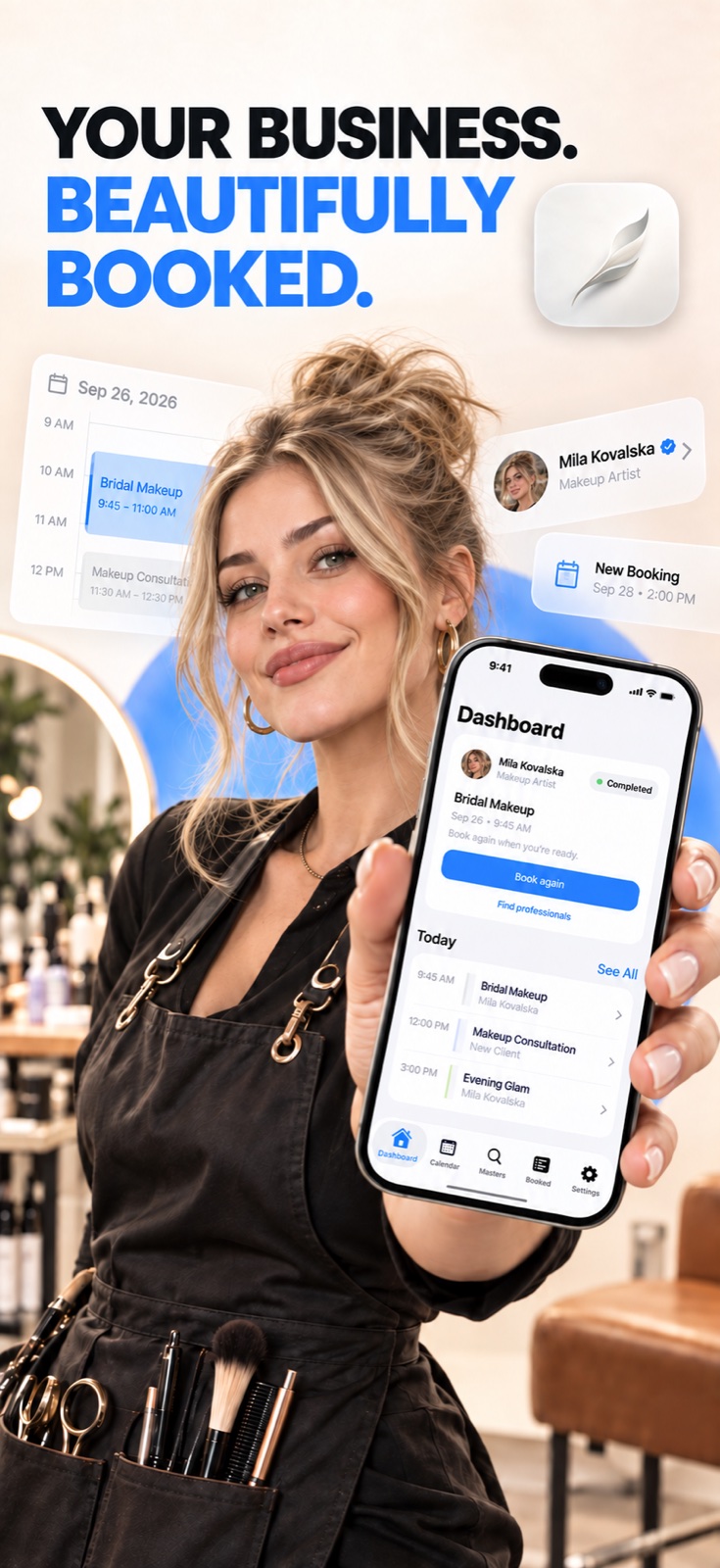 The first impression is yours
What clients see
Your page helps answer the questions that otherwise arrive one DM at a time: What do you do? What does it cost? How long does it take? When can I visit?
Add a photo, headline and about section. Let clients understand your style before they book.
Present services with prices and durations, grouped into categories. Add optional extras when they belong to the visit.
When you are accepting bookings, clients can choose an available time and send a request right from the page.
Build it in ARSO
Workflow → Public Website organizes the page in the order a client experiences it. You can return to each section whenever your business changes.
Choose your Hero photo and name, then write an About section in your own voice.
Set contact visibility and add the social or website links you want to share.
Add public services and categories, with clear prices and durations. Optional add-ons can sit alongside them.
Set availability and turn Accepting Bookings on when you are ready for new requests.
Pick your ARSO page address, complete the publishing requirements and open the live page to see what clients see.
Publishing and accepting bookings are separate controls. A published page can remain visible while you pause new requests.

Your visibility, your choice
Choose whether your professional profile can appear in ARSO search or is available only to people with your direct link. Your published page and your search visibility are not the same setting.
Changing a published page address can break the old link. Check links you have already shared before saving a new address.
A page with personality
Your client page can answer the small questions that otherwise become another message.
On your phone: swipe the cards, then tap to open ↔
 01 / Introduce yourselfMake a first impression.
In Public Website, build your Hero and About sections, choose which contact details are visible and add useful links. You control what belongs on the public page.
Follow the setup guide ↗ 02 / Make it usefulServices lead to the request.
Organize your services, set your website address, choose a theme and publish when ready. Keep at least one active public service; enable accepting bookings if you want clients to request time online.
See the publishing steps ↗Website questions
Yes. The public page opens in a browser and supports an appointment request without an app download.
Pausing new requests does not by itself unpublish the page. Clients can still see it, but booking is unavailable while the pause is active.
Yes. Choose between discovery in ARSO search and direct-link-only visibility. A direct-link-only page can still be shared.
Use the step-by-step public website guide, which walks through the app’s sections with example data.
Make the page work for you
Start with your services. Publish when you are ready. Share one link with confidence.
Get ARSO on the App Store ↗